
Adding Metafields To Your Fulfillment
You can add Metafields to your Order, whether they are defined in Shopify, set up in Shopify without a definition, or created by EZ Fulfill during fulfillment (created as unstructured Metafields). You can read more about Metafield definitions in Shopify's documentation.
Adding Metafields That Have A Definition In Shopify
Once you have the Metafield defined, you can add it to your Fulfillment by mapping it to a column in your file using the Metafield Configuration in your data feed. You must add the Metafield using its namespace and key, as set up in Shopify.

Below you can see how the customer.sales_rep Metafield is defined in our Shopify admin.
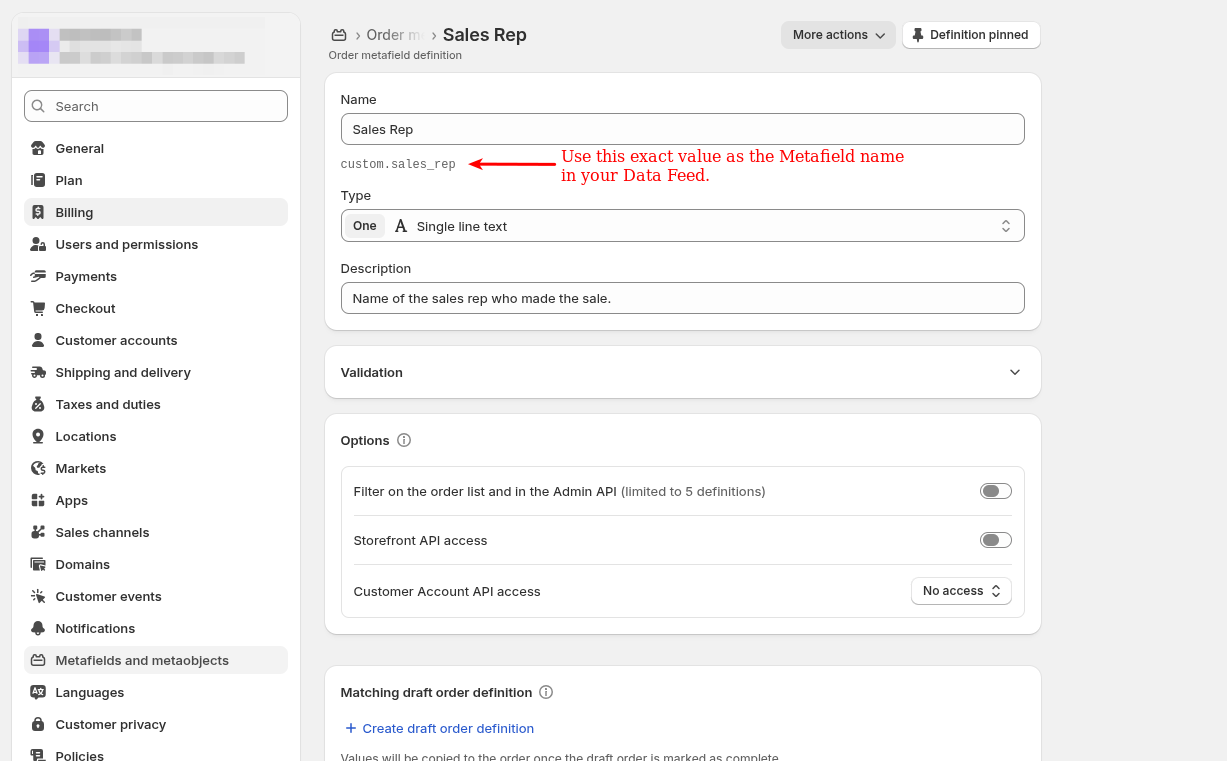
You'll know your Metafield was successfully added to your Order because Metafields defined in Shopify will be displayed on the Orders page in your Shopify admin.
Adding Metafields That DO NOT Have A Definition In Shopify
You may have unstructured Metafields defined in your Shopify store, or you may want to add a Metafield that isn't currently defined in Shopify. In either case, you can define the Metafield type so that Shopify either uses the unstructured Metafield already set up in your store or adds a new one. If you want to use unstructured Metafields with your fulfillment, you'll need to set up the Metafield definition as shown below. You must select a Metafield Type when working with unstructured Metafields. If you select Shopify Definition with unstructured Metafields, Shopify will return an error.

If the Metafield wasn't already defined in Shopify, you'll see the new Metafield you added in the unstructured Metafields section of your Shopify admin.
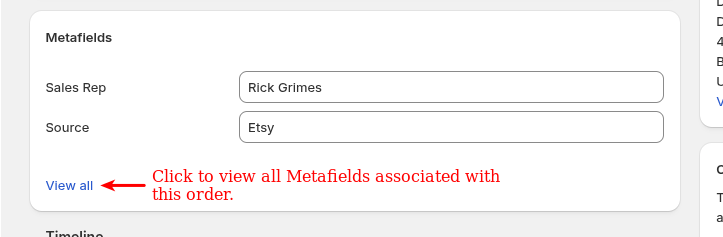
The Metafields will also show up in the unstructured Metafields section of your Order. To view unstructured Metafields on your Order, click the View all link in the Metafields section of your Order.
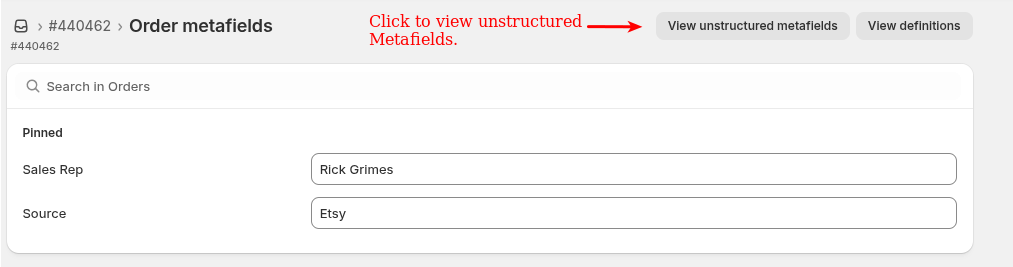
This will bring you to the all Metafields section of your Order, where you can click the view unstructured Metafields button to view all unstructured Metafields associated with your Order.
Errors And Performance Considerations
Before we walk through managing any errors that may arise when adding Metafields, we should talk about a few things you should look out for when adding Metafields to your Order:
- Adding Metafields to your orders can significantly slow down your imports. There is an additional call to the Shopify API for every Order that needs to be fulfilled. These additional requests can add up, causing the fulfillment process to take longer.
- Because Metafields must be added after the Order is fulfilled, the Order will still be marked as fulfilled and have tracking numbers added, even if there are errors adding your Metafields.
If there are errors adding Metafields to your Order, you can review them in the Activity Log Details section. A warning icon will be displayed with the error message returned from Shopify.
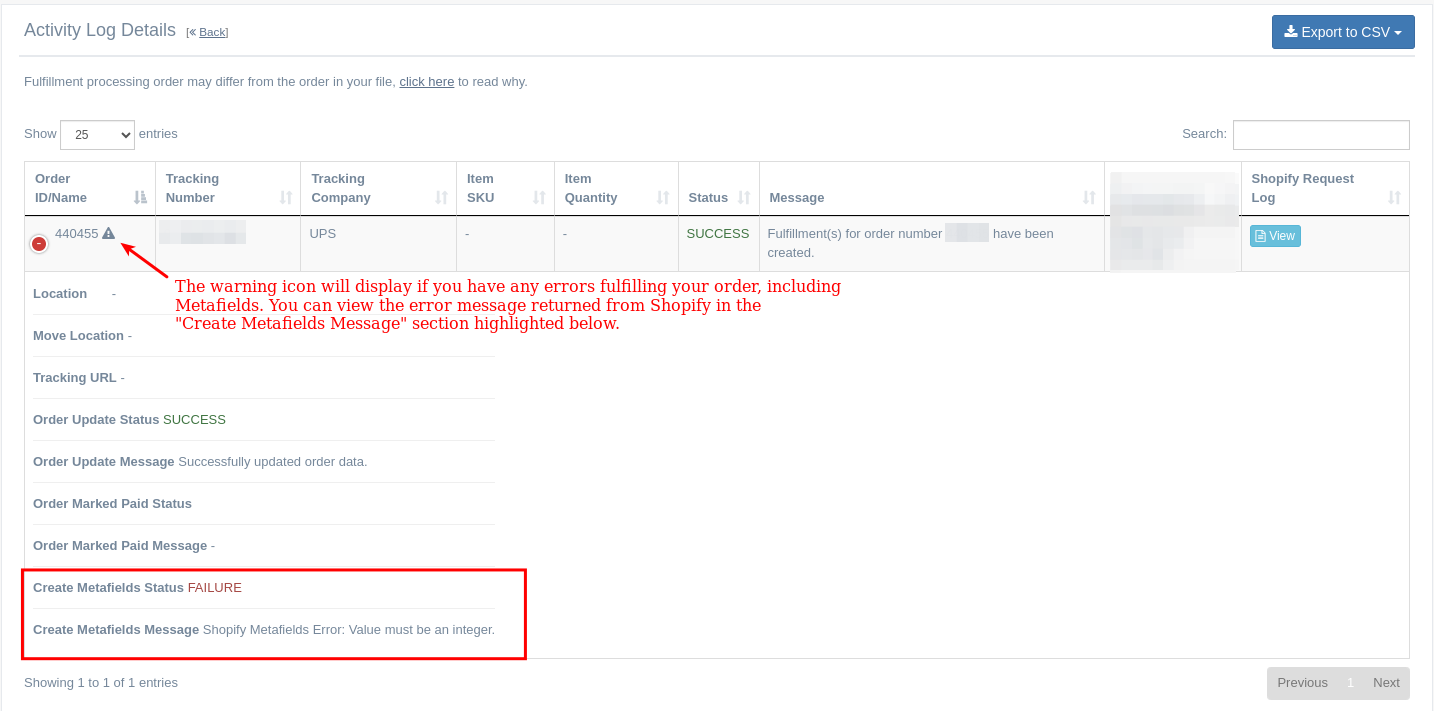
If your Metafields have been successfully added to your Order, they will appear in the Activity Log Details with a status of SUCCESS. Be sure to run tests before adding Metafields with your fulfillments to ensure they get added as you expect.
App: EZ Fulfill
Tags: advanced features, metafields