
How to Create a Shareable JSON Feed From a Google Sheets Spreadsheet Using Google Apps Script

Google Sheets supports exporting data to a bunch of formats such as CSV, Excel, and PDF. However, it doesn't support exporting data to JSON.
While the most popular and widely used data export format is CSV, there are some platforms that don't support it.
This use case actually came up from a customer of our Shopify data export app, EZ Exporter, where they wanted to export a custom product catalog of their Shopify product data to use with Klaviyo, but Klaviyo only supports JSON or XML formats and our app only supports exporting to CSV and Excel.
So we did some research for potential workarounds. Since our app also has a direct Google Sheets integration, we realized our app could simply push the data to Google Sheets and then our customer can use Google Apps Script to automatically convert the spreadsheet data to JSON, which can then be accessed via a public URL. They can then share with other platforms like Klaviyo.
With this setup, they can basically use our EZ Exporter app to periodically push new data from Shopify to Google Sheets, and the JSON data returned by the URL generated by Google Apps Script is also updated automatically.
Below are the steps on how to do this.
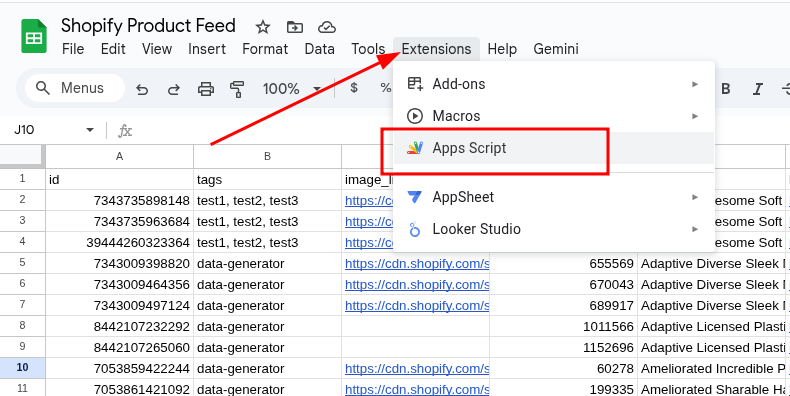
1. Open the Google Sheets spreadsheet you want to use. From the menus, click Extensions > Apps Script.
2. Copy/paste the code below (replace "Sheet1" with the name of the specific sheet/tab you want to convert to JSON).
function doGet(e) {
  var sheet = SpreadsheetApp.getActiveSpreadsheet().getSheetByName('Sheet1');
  var data = sheet.getDataRange().getValues();
  var headers = data[0];
  var jsonArray = [];

  for (var i = 1; i < data.length; i++) {
    var rowObject = {};
    for (var j = 0; j < headers.length; j++) {
      rowObject[headers[j]] = data[i][j];
    }
    jsonArray.push(rowObject);
  }

  var jsonOutput = JSON.stringify(jsonArray);

  return ContentService.createTextOutput(jsonOutput).setMimeType(ContentService.MimeType.JSON);
}
3. Click Save, then click Run to confirm the code is valid (you may get prompted to approve permissions).
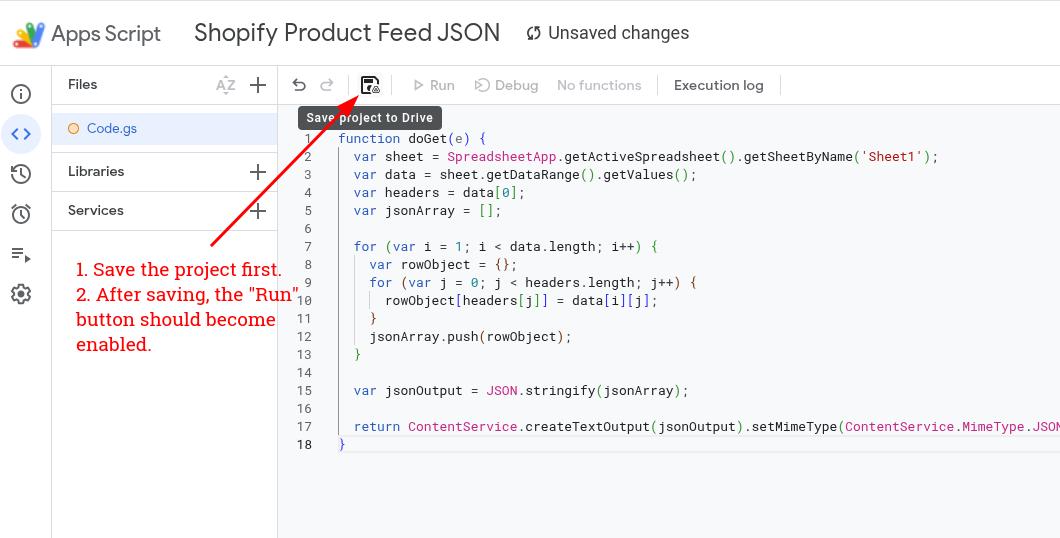
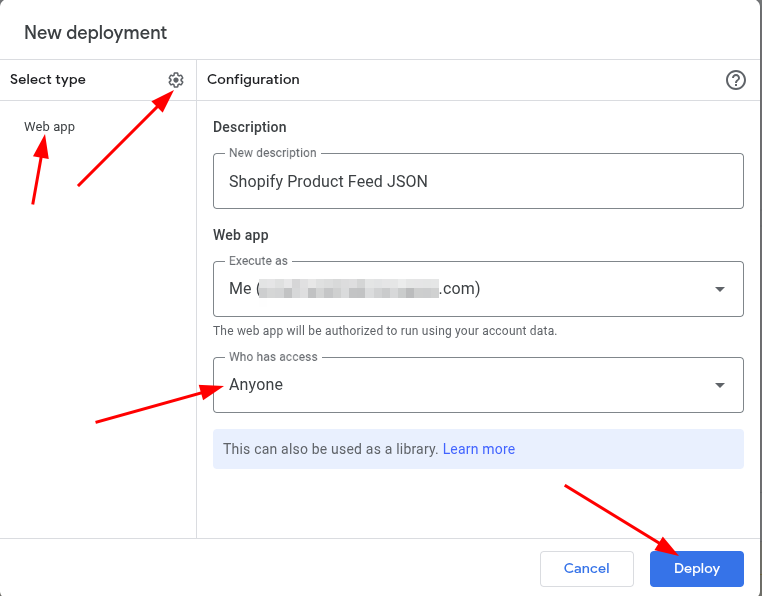
4. Select New Deployment.

5. Select type > Web app, Who has access > Anyone, then click Deploy.
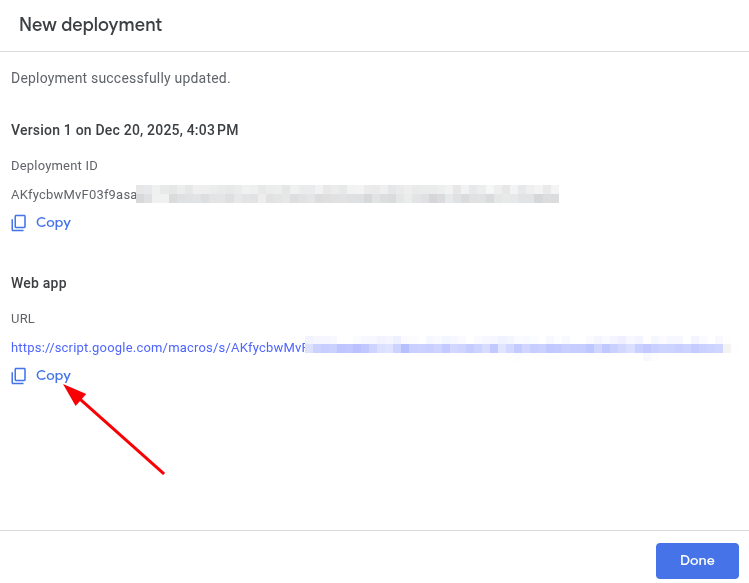
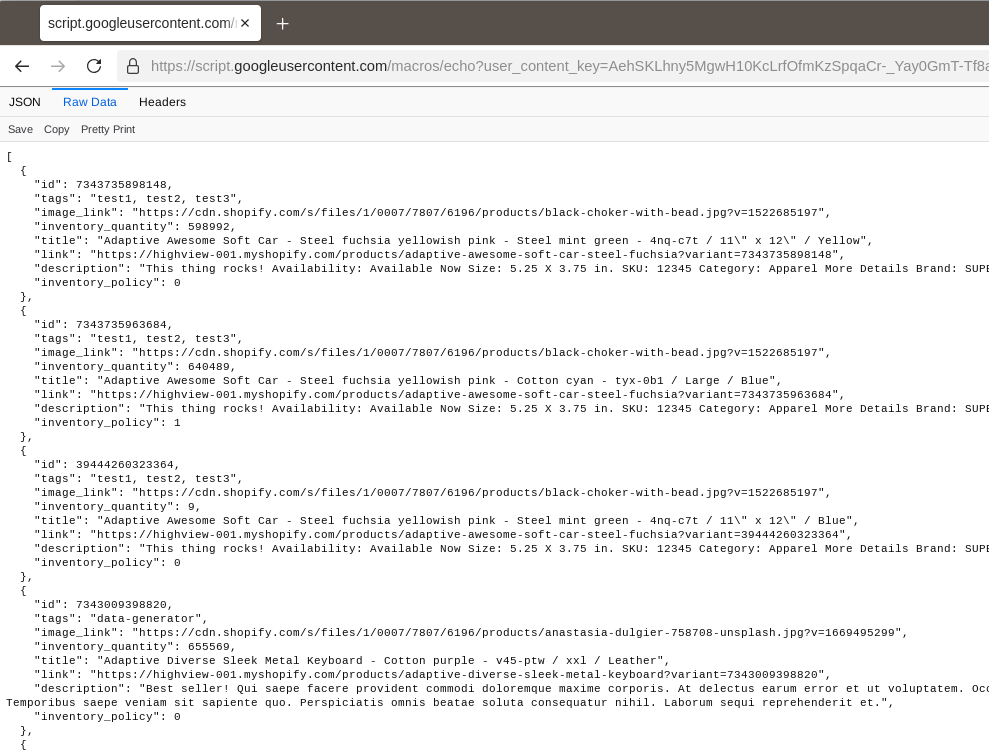
6. The web app is now live. Simply copy the URL and you're done. Visiting the URL will display a JSON feed using the data from the Google Sheets spreadsheet.
Sample output:
Tags: google sheets, shopify product feeds, howto