
How to Upload a ChatGPT Product Feed From Shopify to OpenAI Ads Manager Via SFTP With EZ Exporter

The OpenAI Ads Manager for ChatGPT ads is currenty in Beta and we're already seeing a few Shopify merchants use our EZ Exporter app to push product data from Shopify to it.
We've created a template for it which already incudes all the required fields. Fields such as the title and description are also already configured to not exceed the maximum character limit defined by OpenAI.
Below are the steps on how to configure our app to automatically push a ChatGPT product feed from Shopify to OpenAI Ads Manager via SFTP.
1. In EZ Exporter, go to the "Templates" page and use the template called "ChatGPT Product Feed":
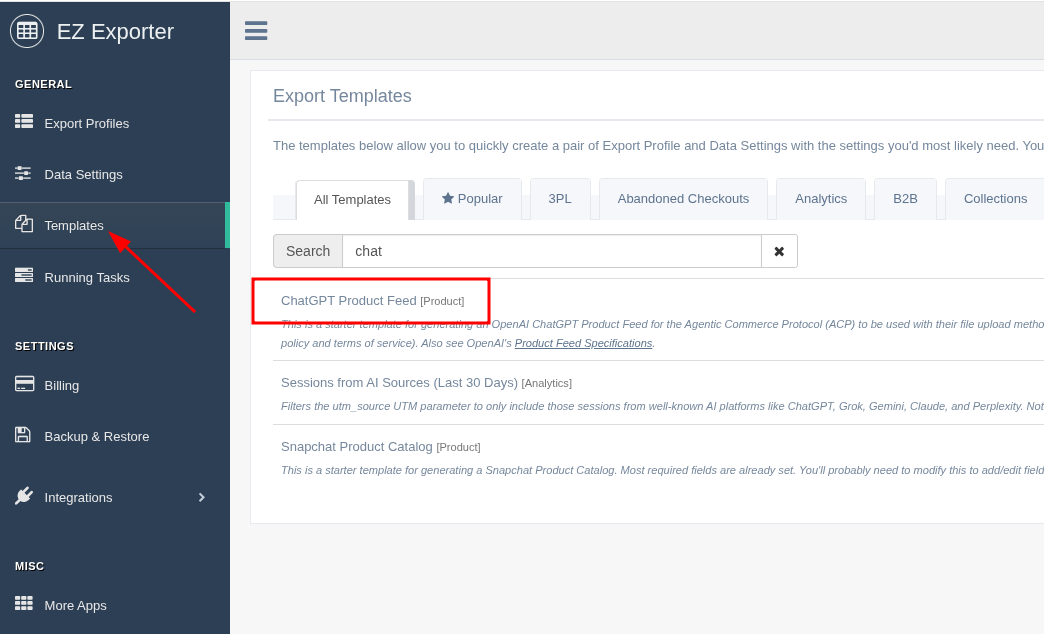
This will create a set of Export Profile and Data Settings. You'll likely have to edit the Data Settings and update the URLs for your returns policy, privacy policy, and terms of service pages since these are merchant-specific.
2. In the OpenAI Ads Manager:
Create a product feed
-
In Ads Manager, navigate to the Tools tab
-
Select Feeds
-
Click Create Feed
-
Follow the prompts to create a new product feed
After the feed is created, Ads Manager will generate the SFTP connection details you need to upload your feed.
Configure your SFTP connection
-
From the feed row, open the three-dot menu
-
Select Edit SFTP Connection
-
Choose your authentication method: password or SSH key
3. Back to EZ Exporter:
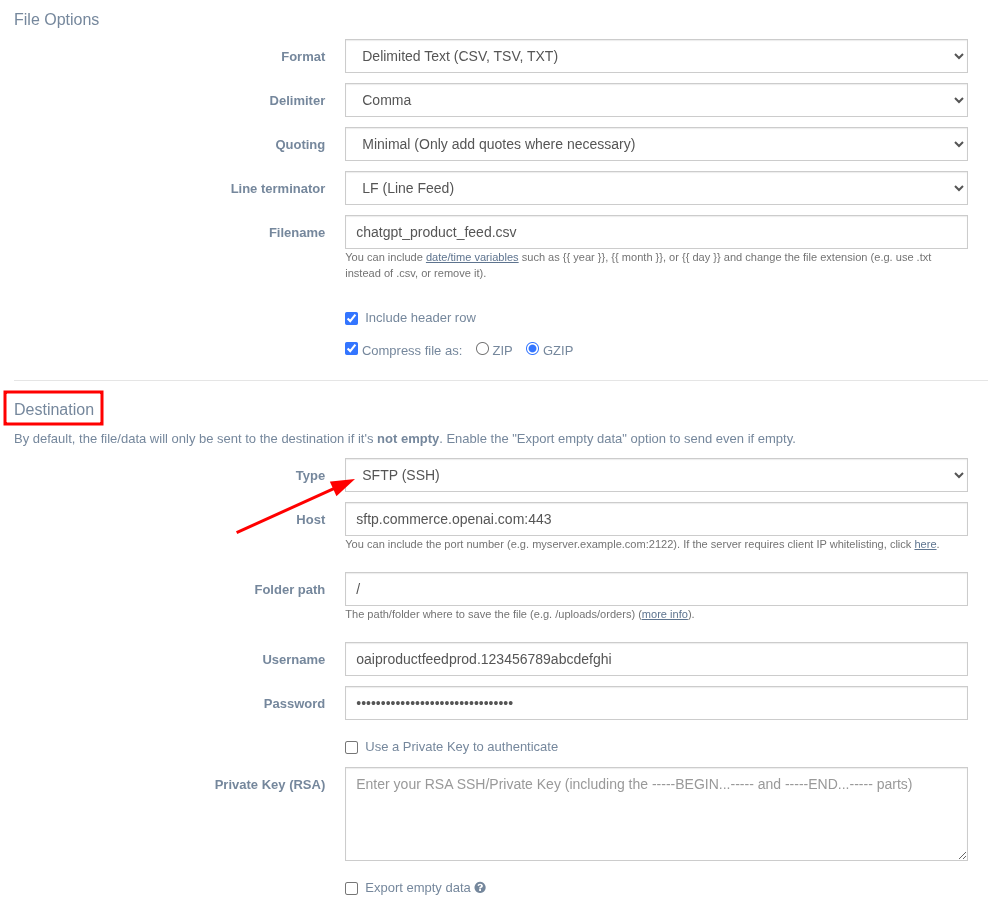
Edit the Export Profile and select the "SFTP (SSH)" option under Destination > Type, enter the SFTP information provided by OpenAI, and save the settings:
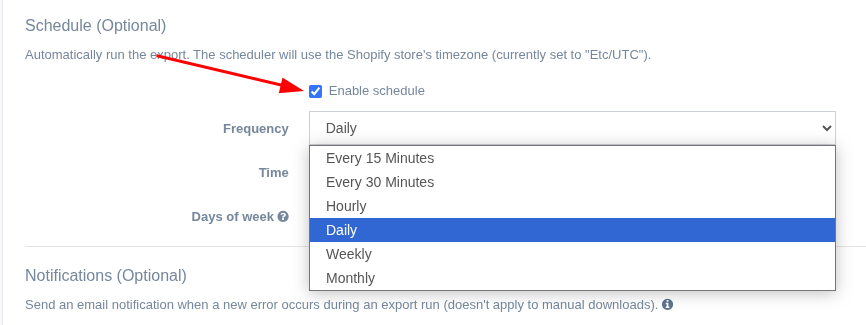
4. In the Schedule section, enable the scheduler and set the desired schedule to automatically push the feed to OpenAI's SFTP server (you might want to wait and enable this later instead after doing an initial test):
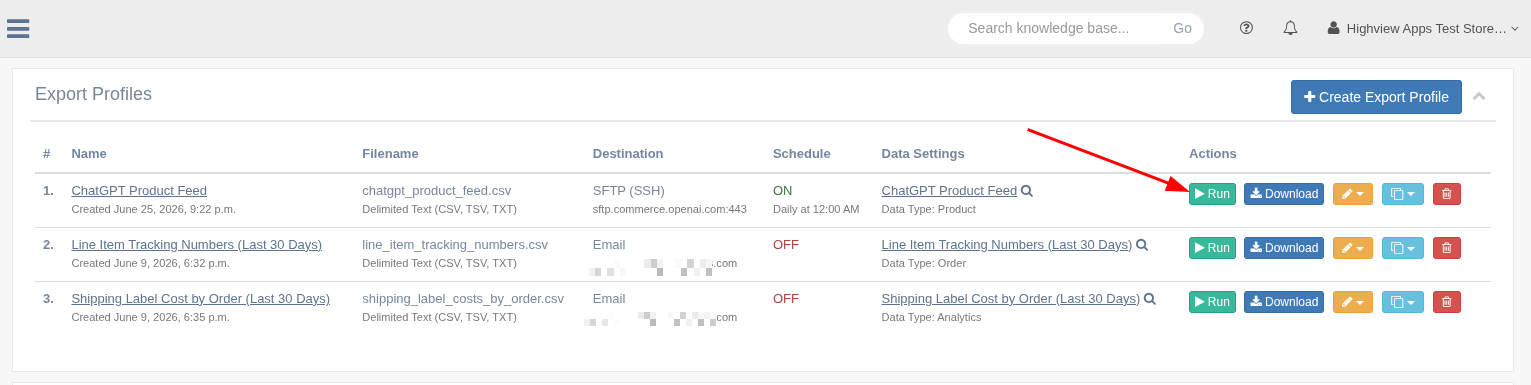
In the Export Profiles listing page, you can also manually click the "Run" button to upload a new file to the SFTP server at any time:
Notes:
- Since the OpenAI Ads Manager is still in Beta, it's currently lacking troubleshooting tools such as figuring out why a file upload or processing failed.
- While their docs mention it could take a few minutes to a few hours to process a feed depending on size, we've seen cases where it took multiple days for the product data to show up on their platform.
- We recommend pushing a feed with just the 18 required fields first and make sure that's processed successfully before adding the optional fields.
Tags: chatgpt, openai, product feeds, howto, ez exporter